You have a column of URLs and you need the pieces — the domain, a query parameter, or in our case the latitude and longitude buried in a hundred-plus Google Maps links. Google Sheets can shred a URL into columns in a few clicks, no paid geocoding API required. Here’s the fast keyboard version, the guided menu version, and the formula version that keeps itself up to date.
The expert version, in one line
Select the column, then: Ctrl+Alt+D, E (opens Data → Split text to columns), arrow keys to pick a separator, Enter. Done.

If that sentence was enough, you’re finished. For everyone else, the walkthrough:
Split text to columns, step by step
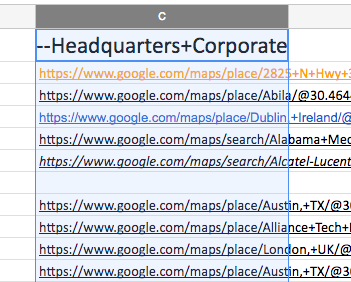
Our working data: a column of URLs, each ending in @30.2672,-97.7431-style coordinates.
Left-click the column header containing the URLs to select the whole column.
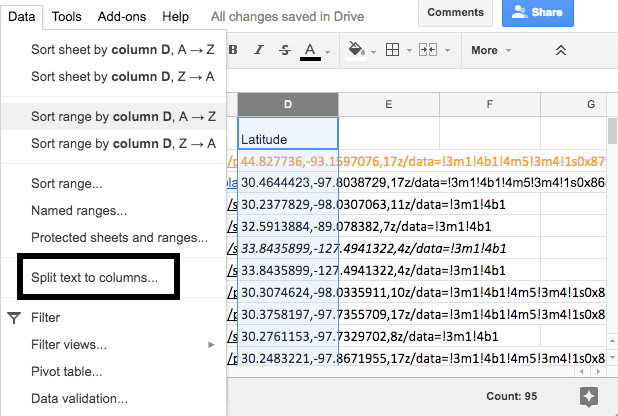
Open Data → Split text to columns (that same Ctrl+Alt+D, E — Ctrl+Option+D on a Mac).
A small Separator dropdown appears at the bottom of the sheet — easy to miss on a big monitor. Sheets guesses comma by default.
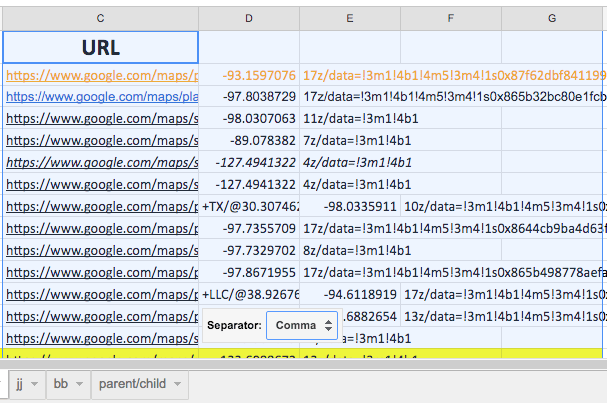
Choose Custom, and type the character that precedes what you want — for Maps URLs, that’s
@. The column splits instantly: everything before the@stays put, the coordinates land in the next column.The coordinates are still a
lat,longpair, so run Split text to columns once more on that new column with the default comma separator. Latitude and longitude now sit in their own columns — add headers and you’re done.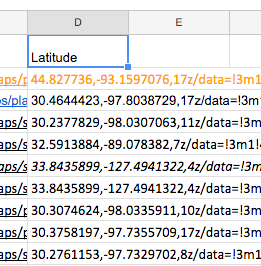
One thing to know: the menu approach overwrites the source column and anything to its right, so work on a copy of the column if you need the original URLs intact.
The formula version (when data keeps arriving)
Split text to columns is a one-time operation — paste new URLs next week and nothing happens. Formulas recalculate. The equivalent of the two-step split above:
=SPLIT(C2, "@")And for grabbing latitude and longitude in one move each:
=INDEX(SPLIT(INDEX(SPLIT(C2, "@"), 2), ","), 1)
=INDEX(SPLIT(INDEX(SPLIT(C2, "@"), 2), ","), 2)
For gnarlier extractions — a query parameter, the domain, an ID in the path — REGEXEXTRACT is the sharper knife: =REGEXEXTRACT(C2, "@(-?[0-9.]+),") pulls just the latitude, and the same pattern idea handles almost any “the piece between X and Y” request. Sheets speaks RE2 regex, so anything you’d grep for, you can extract.
When the spreadsheet stops being the right tool
Splitting a few hundred URLs in Sheets is a two-click win. But when this becomes a recurring step — thousands of rows, weekly refreshes, joins against other sources — you’ve quietly started building an ETL pipeline in a spreadsheet, and that’s where the errors creep in. That’s the point to graduate to a real transformation tool: we build these flows daily with KNIME and Alteryx, where “split URL to columns” is one configurable node in a repeatable, auditable workflow instead of a manual ritual.
Enjoy — and if you’re curious what the ETL version of this job looks like, how to use ETL to clean and transform messy data sets is the natural next read.